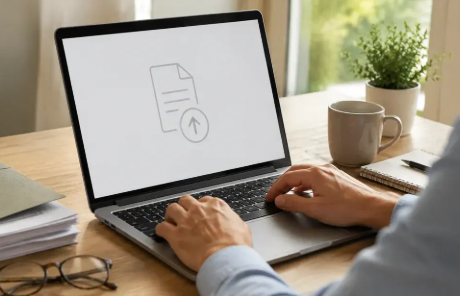

To compress a 2GB PDF file, use Adobe Acrobat’s online tool to reduce PDF file size: Adobe says it handles files up to 2GB, lets you choose a High, Medium, or Low compression level, and deletes your file unless you sign in to save it.
This article is for anyone who needs the best tools for compressing PDF files up to 2GB in size.
Best PDF Compression Software for Large Files Up to 2GB
The best PDF compression software for large files depends on whether you want a desktop program or an online tool: Adobe Acrobat covers both, while Ghostscript, PDF24 Creator, Sejda, and iLovePDF each cover part of the job. Adobe’s help pages describe a Reduced Size PDF feature and a PDF Optimizer with panels for images, fonts, transparency, and discarded objects. Adobe’s compress page says the desktop app processes files on your own device. Test any tool on a copy of your file, and keep the original.
| Platform | Best For | Key Details |
| Adobe Acrobat desktop | Detailed control, with files kept on your device | Adobe says its PDF Optimizer adjusts images, fonts, transparency, and discarded objects, and can audit what takes up space |
| Adobe Acrobat online | Files up to 2GB in a browser | Adobe says you choose a High, Medium, or Low compression level |
| Ghostscript | Command line compression you can script | Its documentation lists screen, ebook, printer, prepress, and default settings for pdfwrite |
| PDF24 | Adjustable DPI and quality, online or in a Windows app | PDF24 says its online tool has no limits and no watermarks, and its Creator app can compress with DPI and image quality values |
| iLovePDF | Named levels in a browser | iLovePDF says its free plan allows 200 MB for Compress PDF |
| Sejda | Image quality and resolution choices | Sejda says its free service covers documents up to 200 pages or 100 MB |
Audit first: Adobe’s font size guide says an audit of space usage shows how much room fonts and other elements take in your PDF.- Optimizer panels: Adobe’s advanced size reduction guide lists Images, Fonts, Transparency, Discard Objects, and Discard User Data as the panels that cut size.
- Mobile setting: Adobe’s advanced size reduction guide says the Mobile setting downsamples color and grayscale images to a lower resolution than Standard.
- Safe images: Adobe’s optimizer settings guide says a setting can optimize images only if the result is smaller.
- Many files: Adobe’s reduce file size guide says Reduced Size PDF can be applied to multiple files, and lets you choose which Acrobat versions the file must support.
- PDF24 offline: PDF24’s support forum shows PDF24 Creator compressing with DPI and image quality values, with 144 and 75 as defaults.
- Vendor claims: these details come from each vendor’s own pages, so confirm current features and limits before you rely on them.
Best PDF Compressor for Large Files: Which Online Tools Accept 2GB?
Of the online compressors covered here, Adobe Acrobat’s is the one whose own page states a 2GB limit, so it is the best fit for a file that size. Adobe’s compress page says it can handle files up to 2GB, and that the online tool is free with limited use. Others publish lower or different limits: iLovePDF lists 200 MB for Compress PDF on its free plan, and Sejda lists 200 pages or 100 MB. Adobe’s page also says basic compression needs no sign-up, credit card, or subscription. Check each limit before you upload.
- iLovePDF plans: iLovePDF’s pricing page lists 200 MB for Compress PDF on its Basic plan, and says Premium adds unlimited document processing.
- Sejda limits: Sejda’s compress page says the free service covers documents up to 200 pages or 100 MB and 3 tasks per hour.
- Sejda privacy: Sejda’s compress page says files stay private and are deleted automatically after 2 hours.
- PDF24 claim: PDF24’s compress page says no limits and no watermarks, so test it with your own large file.
- Adobe privacy: Adobe’s compress page says your file is deleted from Adobe servers unless you sign in to save it.
- Adobe paid features: Adobe’s FAQ says unlimited compression, batch processing, and advanced setting controls need a paid plan.
- Protected files: Adobe’s FAQ says password-protected PDFs need the password entered first.
Official Ghostscript pdfwrite PDF Compression Documentation: What It Says
Ghostscript’s official documentation says pdfwrite is its device for writing PDF files, and that the PDFSETTINGS control bundles compression choices into screen, ebook, printer, prepress, and default presets. Ghostscript’s high level devices page says screen selects low-resolution output, ebook selects medium-resolution output, and prepress does not indicate the highest quality conversion. It does not state a maximum input size, so test your own file. Ghostscript’s documentation lists each preset’s image settings in a table of Distiller parameters. Use it when you can work from a command line.
- Default: Artifex’s optimizing guide says the default PDFSETTINGS value does not apply any kind of space savings.
- Image resolution: Ghostscript’s 10.0.0 documentation lists gray image resolutions of 72 for default and screen, 150 for ebook, and 300 for printer and prepress.
- Downsampling: Ghostscript’s 10.0.0 documentation lists image downsampling as on for screen and ebook, and off for default, printer, and prepress.
- Controls: Artifex’s optimizing guide says you can set downsampling for color, gray, and monochrome images separately.
- Close enough: Ghostscript’s optimizing blog says images already close to the target resolution are not reduced.
- Reused images: Ghostscript’s optimizing blog says an image used at several sizes is downsampled once, to the lowest effective resolution.
Frequently Asked Questions
Why is my PDF so large to begin with?
Images are usually the cause. Adobe’s optimizer guides say the Images panel lowers resolution by downsampling and removes unnecessary pixel data by compression, and the fonts guide says unembedding fonts can significantly reduce size. Adobe’s audit tool shows what takes up the space. Run it first, so you change the settings that matter, and keep the original in case a setting lowers quality too much.
Can I compress a large PDF without uploading it?
Yes. Adobe’s compress page says the Acrobat desktop app compresses files locally on your device. Ghostscript runs on your own computer, and PDF24’s support forum shows its Creator app compressing files with DPI and image quality values. For confidential PDFs, use one of these instead of an online service. Check each tool’s page for the platforms it supports before you install it.
Will compression remove links, forms, or signatures?
Adobe’s FAQ says its online tool preserves hyperlinks, form fields, and digital signatures. Adobe’s advanced size reduction guide says the optimizer’s discard options can remove comments, forms, multimedia, and private data, or flatten form fields, so choose them on purpose. Compare the compressed file with the original, especially for signed or fillable PDFs, before you send it to anyone.
What if the compressed file is still too large?
Use a stronger setting, then check quality. Adobe’s guide says the Mobile setting downsamples images to a lower resolution than Standard, and Ghostscript’s documentation describes screen as low-resolution output. iLovePDF’s size guide says to move from Recommended to Extreme only if you need to. Run the stronger setting on a copy, zoom in on images, and stop when the quality is acceptable.
To compress a 2GB PDF file, use Adobe Acrobat’s online tool for files up to 2GB, or Acrobat desktop and Ghostscript to compress on your own computer.